
Open Connectors in Claude
In Claude on a computer, open Settings. Under Customize, click Connectors (1). Click + Add (2), then Add custom connector (3).

Claude > Settings > Customize > Connectors tipOlder guides say Settings > Connectors. Claude moved it under Customize in late 2026.
Name it and paste the address
Type revenu in Name (1). Copy the connection address below and paste it into MCP server URL (2). Click Continue (3).
NamerevenuConnection address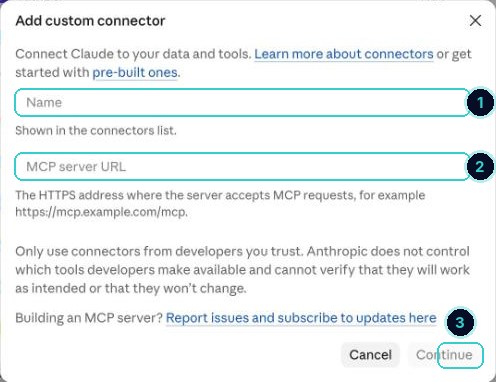
Add custom connector Connect and pick your account
revenu now shows in your connectors list. Click Connect next to it, sign in with your revenu login, and choose the account Claude should work in. Approve it. No key, no code.
Check it works
Start a new chat and paste this in. If it lists your pipelines back, you're connected.
Test promptUsing my revenu account, show me my pipelines.Put it to work
A few to start with. Copy one into a new chat.
Tidy the pipelineShow me every deal that has not moved in 30 days and tag them as needs a nudge.Draft follow-upsPull my ten oldest open leads and draft a friendly follow-up text for each. Show me the drafts, do not send yet.Straight answerHow many new contacts came in last week, and where did they come from?Prep the weekWhat appointments do I have coming up, and which of those customers have not paid yet?tipAsk it to show you things before you let it change anything.
Claude can answer questions about your business and do the fiddly bits for you.
Full guide on The Flow, with the connection address ›Next up
People who did this also asked
Connect ChatGPT to your revenu account
Use ChatGPT to look things up and get work done in your account.
- 1Turn on Developer mode
- 2Add revenu as an app
- 3Sign in and pick your account
Change what your AI agent says
Update its instructions, test it, and switch it on.
- 1Open your agent
- 2Change its instructions
- 3Test it