
How it works
An SLA is a promise of how fast you reply. Once it's on, every unanswered conversation runs a timer. It goes orange at Due Soon and red at Overdue, so your team knows what to answer first.
Open the settings
Go to CRM > Conversations > Conversation Settings and switch SLA Settings on.
CRM› Conversations› Conversation Settings1 See it on the App mapSet the targets
Choose one target for every channel (Common SLA) or different ones per channel. Then set Due Soon and Overdue.
Busy service businessDue Soon: 10 mins. Overdue: 30 mins.Small teamDue Soon: 30 mins. Overdue: 2 hours.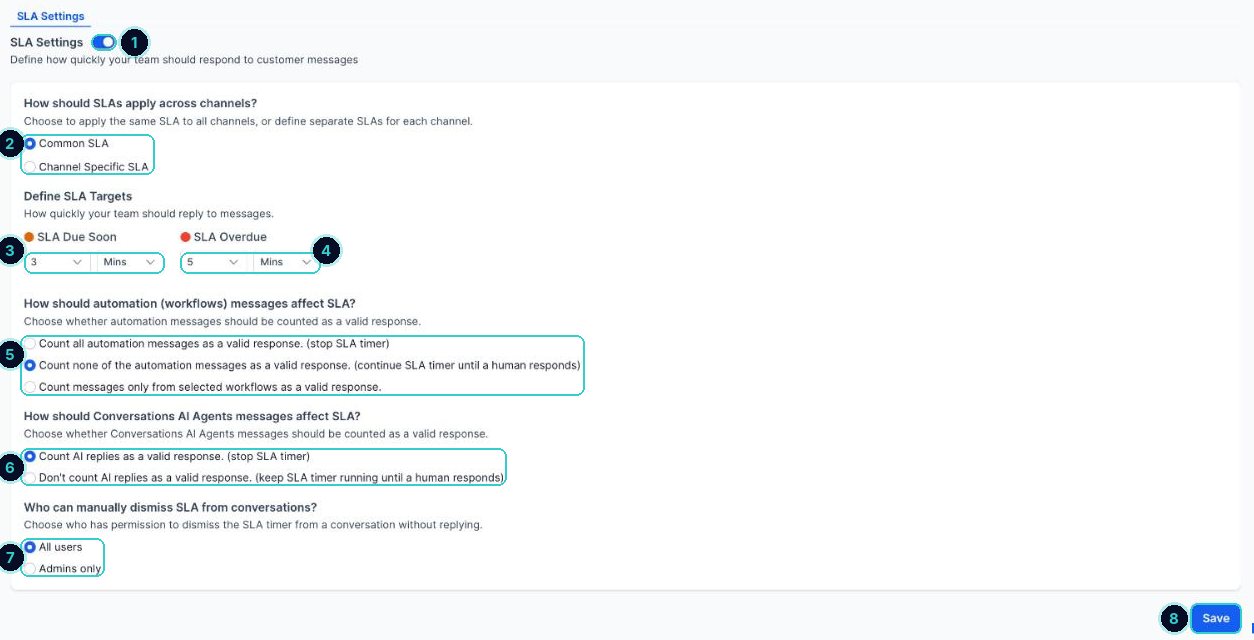
Numbers match the steps on the App map. Decide what counts as a reply
Choose whether automated messages and AI agent replies stop the timer. If you want a human to always follow up, set both to not count.
Who can dismiss
Choose whether anyone or only admins can clear the timer without replying. Then Save.
Your inbox shows what needs answering first, and replies get faster.
Next up
People who did this also asked
Reply to customers from one inbox
Texts, emails, chats, calls and socials, all in one thread per customer.
- 1Open Conversations
- 2Start with Unread
- 3Open the customer
Reply to new leads the moment they enquire
Someone fills in your form and gets a text and email straight back, even at 10pm.
- 1Create a workflow
- 2Start it when the form is sent
- 3Send the reply