
Everything about calendars and bookings
Which calendar to use, how to set hours and rules, how to get booked, take deposits, stop no-shows, and fix it when times don't show.
1 Start here: Which calendar do I need? Every type explainedPick the right calendar
Get this right and the rest is easy.
Which calendar do I need? Every type explained
Personal, round robin, class, collective, event calendar, service booking, rentals or Events. Pick in 30 seconds.
- 1Where they live
- 2Personal booking: just you
- 3Round robin: share the work
Share bookings across your team (round robin)
Customers pick a time and it goes to whoever's free, taking turns, so work stays fair.
- 1How it decides
- 2Create it
- 3Add the team
Book two or more of your team on one job (collective)
Only offers times when everyone's free, and books them all together.
- 1When to use it
- 2Create it
- 3Check their calendars are connected
Run group classes with limited spots
One time slot, many people, and bookings close when it's full.
- 1Create a class calendar
- 2Set seats
- 3Share it
Set up a service menu with staff, prices and durations
Customers pick a service (cut and colour, full detail, 60-minute massage), then a staff member and a time.
- 1How service booking works
- 2Open Services
- 3Make categories first
Take rental bookings (hire gear, rooms, equipment)
List what you hire out with prices, stock, add-ons and fees, and let people book the dates. Beta.
- 1How rentals differ
- 2Open Rentals
- 3Add a listing
Let customers book any of your team
One calendar that shares bookings across your staff, or books several people together.
- 1Create a calendar
- 2Pick the type
- 3Add the team
Set it up
Hours, rules and the questions you ask.
Set your hours and booking rules properly
Working hours, one-off days, appointment length, start times, notice, buffers and daily limits, all in one place.
- 1Open the calendar
- 2Availability: your weekly hours
- 3Date specific hours
Add buffer time and minimum notice to bookings
Leave travel or clean-up time between jobs, and stop last-minute bookings.
- 1Open the calendar
- 2Availability
- 3Booking rules
Block out holidays and days off
Stop bookings on public holidays, leave days or a long lunch.
- 1Open the calendar view
- 2Choose Blocked off time
- 3Whole closures
Ask intake questions when someone books
Attach a form to your calendar so you know the address, job type or details before you arrive.
- 1Make the form
- 2Questions worth asking
- 3Attach it to the calendar
Add a Zoom or Google Meet link to bookings
Every booking gets its own video link, sent in the confirmation.
- 1Connect the video app
- 2Set it as the location
- 3Or use your Meeting Room
Stop two people booking the same room or machine
Link rooms and equipment to bookings so they can't be double booked.
- 1Turn them on
- 2Add your rooms or gear
- 3Link them to calendars
Sync your Google or Outlook calendar so you don't get double booked
Connect your calendar so busy times block bookings, and bookings show on your phone.
- 1How sync works
- 2Connect it
- 3Pick the conflict calendars
Get booked
Put the calendar in front of people.
Share your booking link or put it on your website
Get the link for texts and emails, or put the calendar straight on your site.
- 1Open Meeting Calendars
- 2Click Share calendar
- 3Copy the link for messages
Put several calendars on one booking page (groups)
A group puts calendars side by side so customers choose, from one link.
- 1Make a group
- 2Add calendars to it
- 3Share the group link
Book a client in yourself
Add a booking for a customer who rang or walked in.
- 1Open the calendar view
- 2Fill it in
- 3Need a time outside hours?
Make a QR code
For flyers, vans, counters and business cards. It tracks scans too.
- 1Start one
- 2Choose where it goes
- 3Style it
Money and no-shows
Deposits, policies, reminders and follow-up.
Take a deposit when someone books
Ask for a deposit or full payment up front so no-shows cost them, not you.
- 1Connect your payment account
- 2Open your calendars
- 3Edit the calendar
Let clients cancel or reschedule, and set a policy
Give customers a link to change their booking, with your rules on how late they can do it.
- 1Open the policy settings
- 2Set your rules
- 3Write the policy
Send appointment reminders
A text or email goes out when someone books, so fewer people forget.
- 1Create a workflow
- 2Start it when someone books
- 3Add the reminder
Mark no shows and follow them up
Record who didn't turn up and send them a friendly rebooking message automatically.
- 1Mark it
- 2Follow up automatically
- 3Message to send
Change who gets booking notifications
Choose which staff get told about new bookings, cancellations and reschedules.
- 1Open the calendar
- 2Pick the recipients
- 3Edit the wording
When it goes wrong
The fixes for the usual problems.
Customers say there are no times to book
Find out why a calendar shows nothing, and fix it.
- 1Open Meeting Calendars
- 2Check it's active
- 3Run Troubleshoot calendar
Sync your Google or Outlook calendar so you don't get double booked
Connect your calendar so busy times block bookings, and bookings show on your phone.
- 1How sync works
- 2Connect it
- 3Pick the conflict calendars
Why isn't my workflow working?
The ten things that quietly stop automations, and how to check each in a minute.
- 1It's still a draft
- 2Check Enrollment History
- 3A filter doesn't match
See every screen
Real screens with every button numbered and explained.
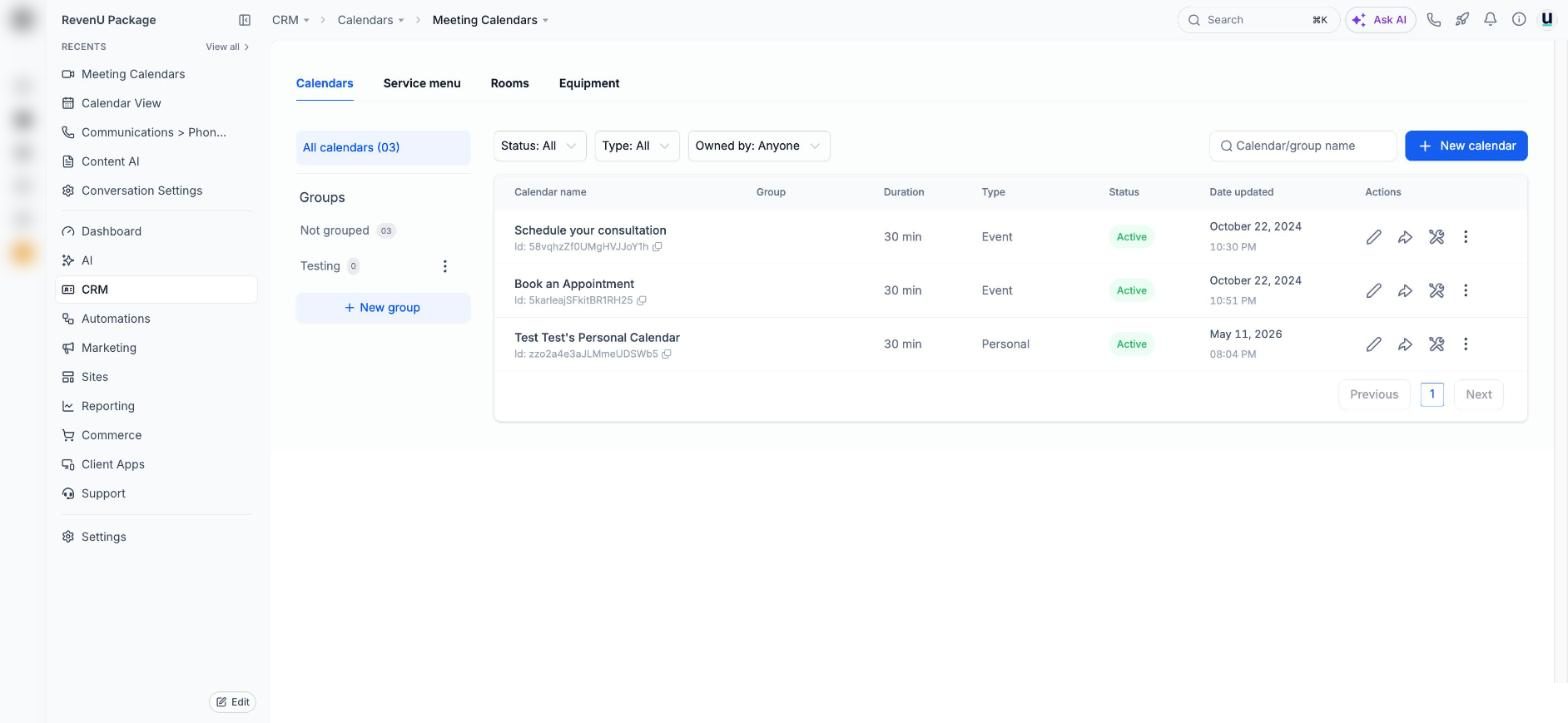 Meeting calendars10 buttons explained
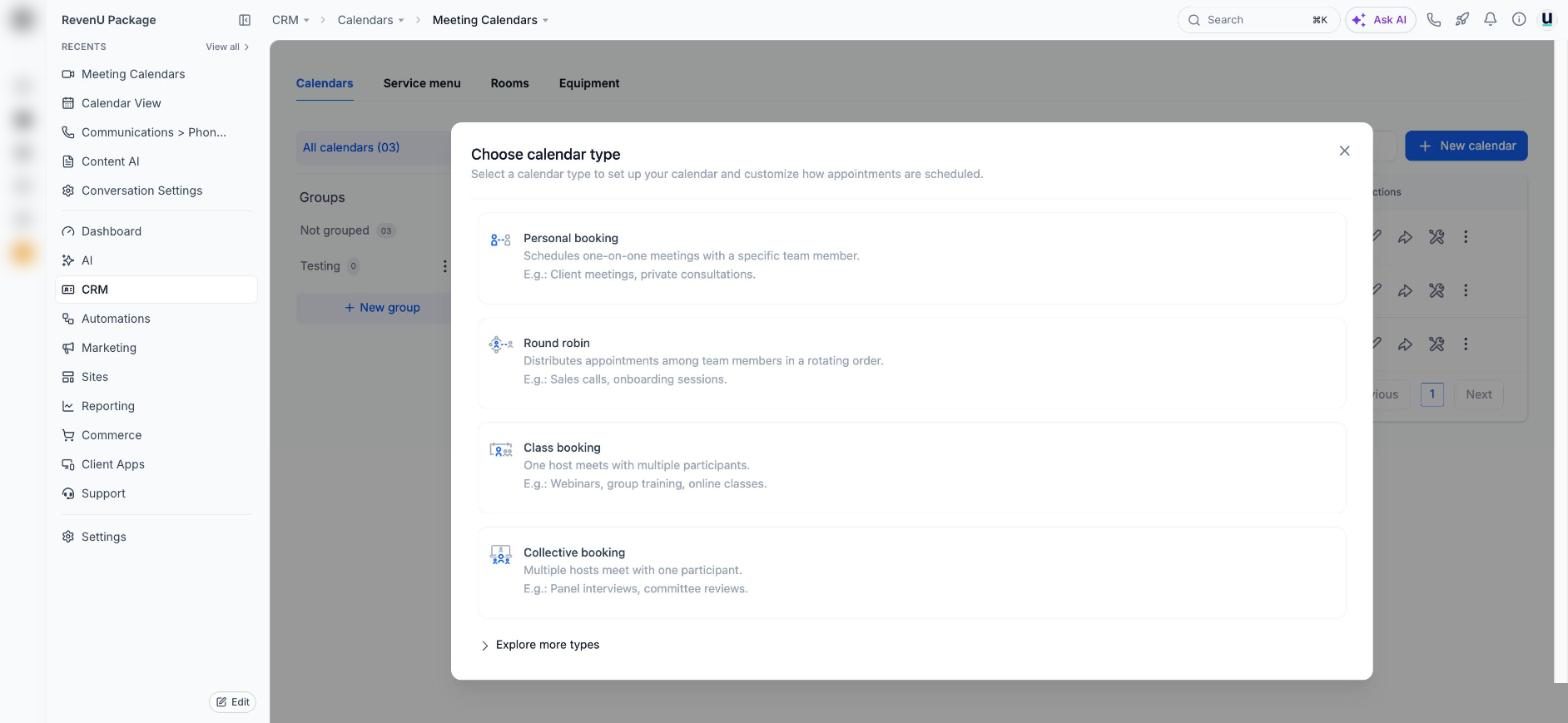 Choose calendar type5 buttons explained
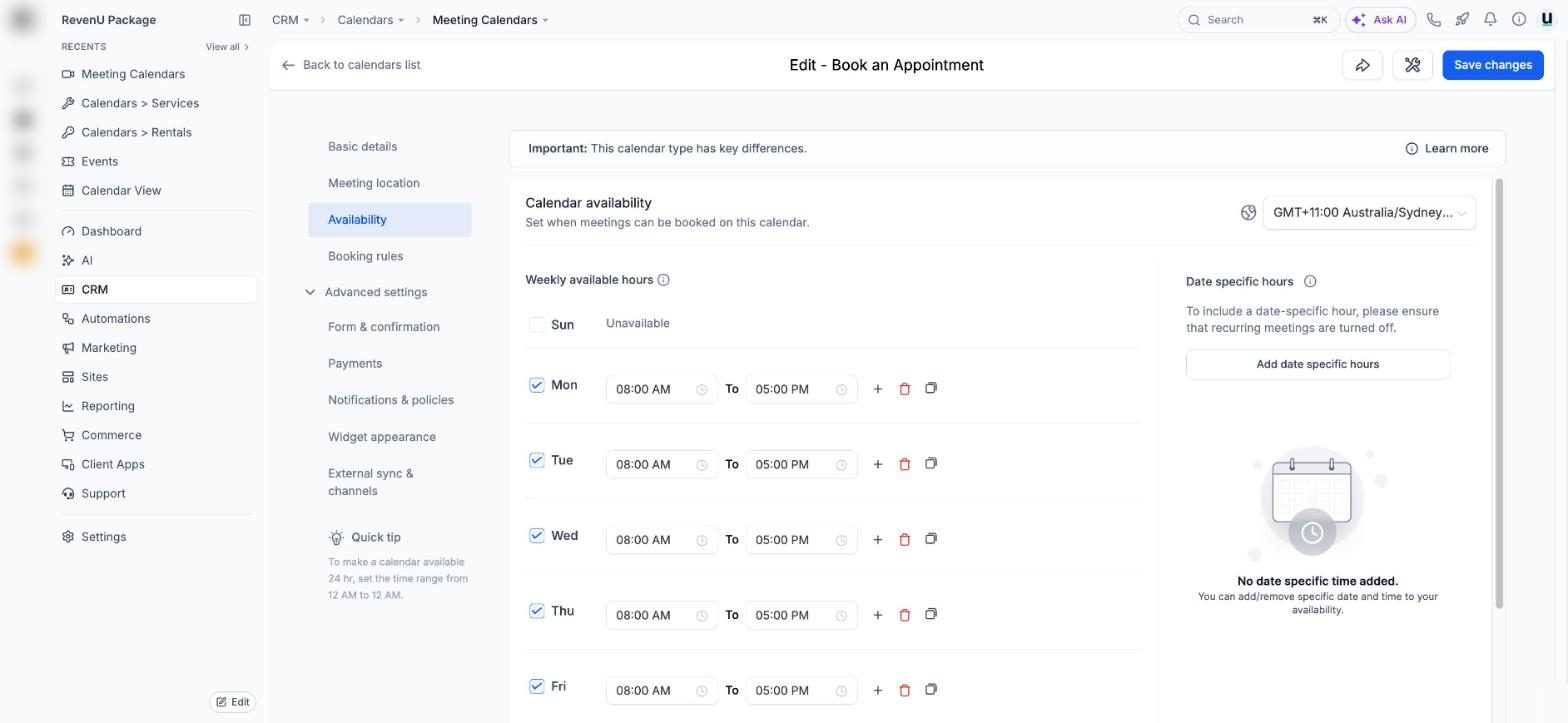 Calendar availability6 buttons explained
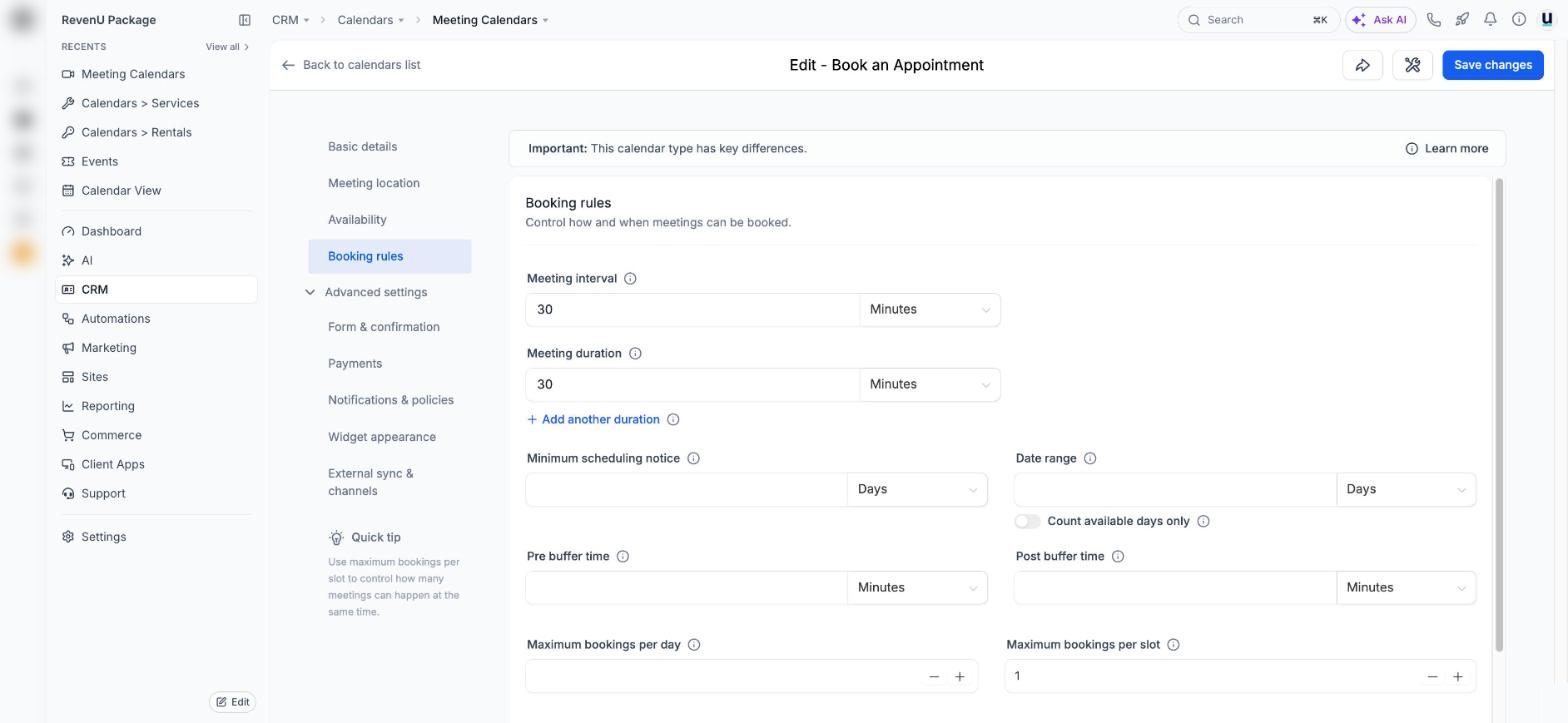 Calendar booking rules8 buttons explained
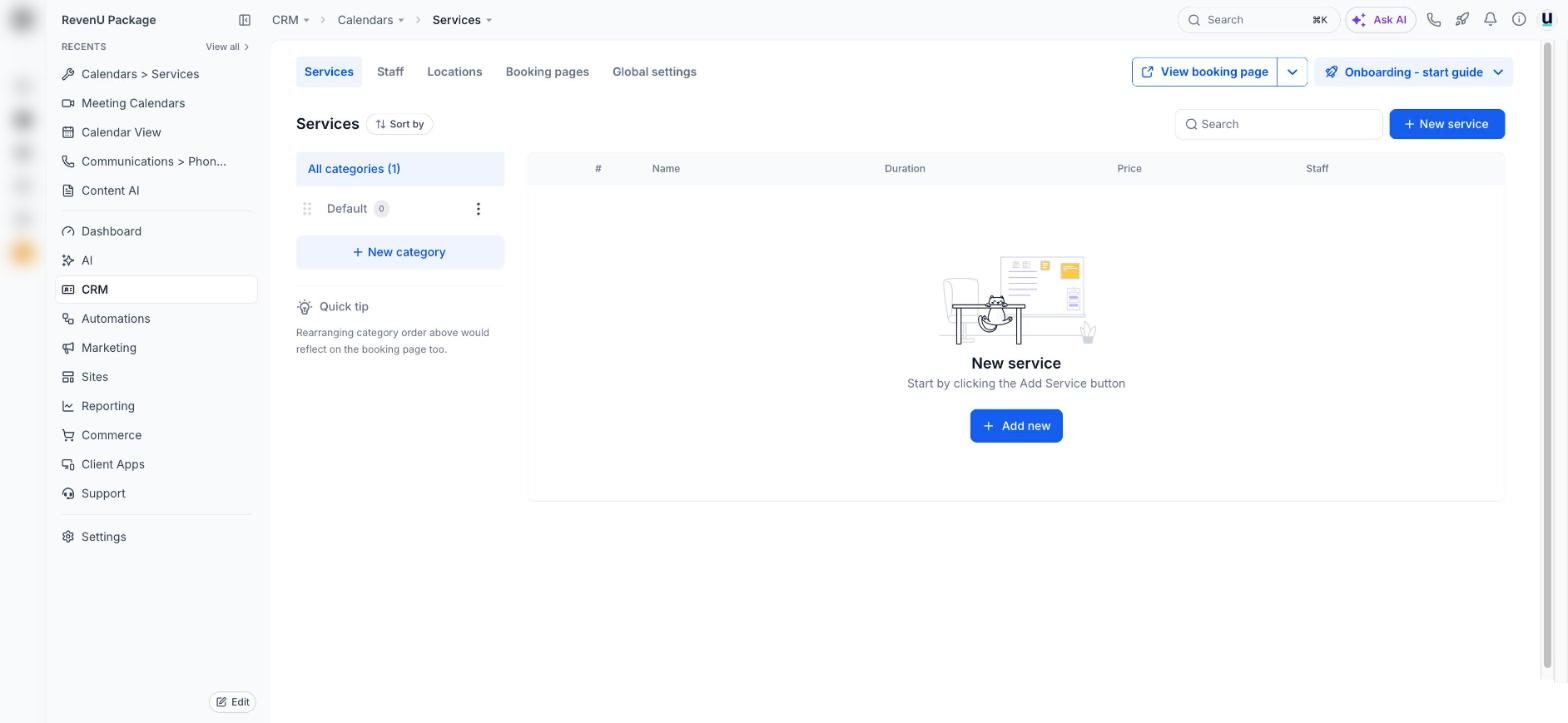 Services6 buttons explained
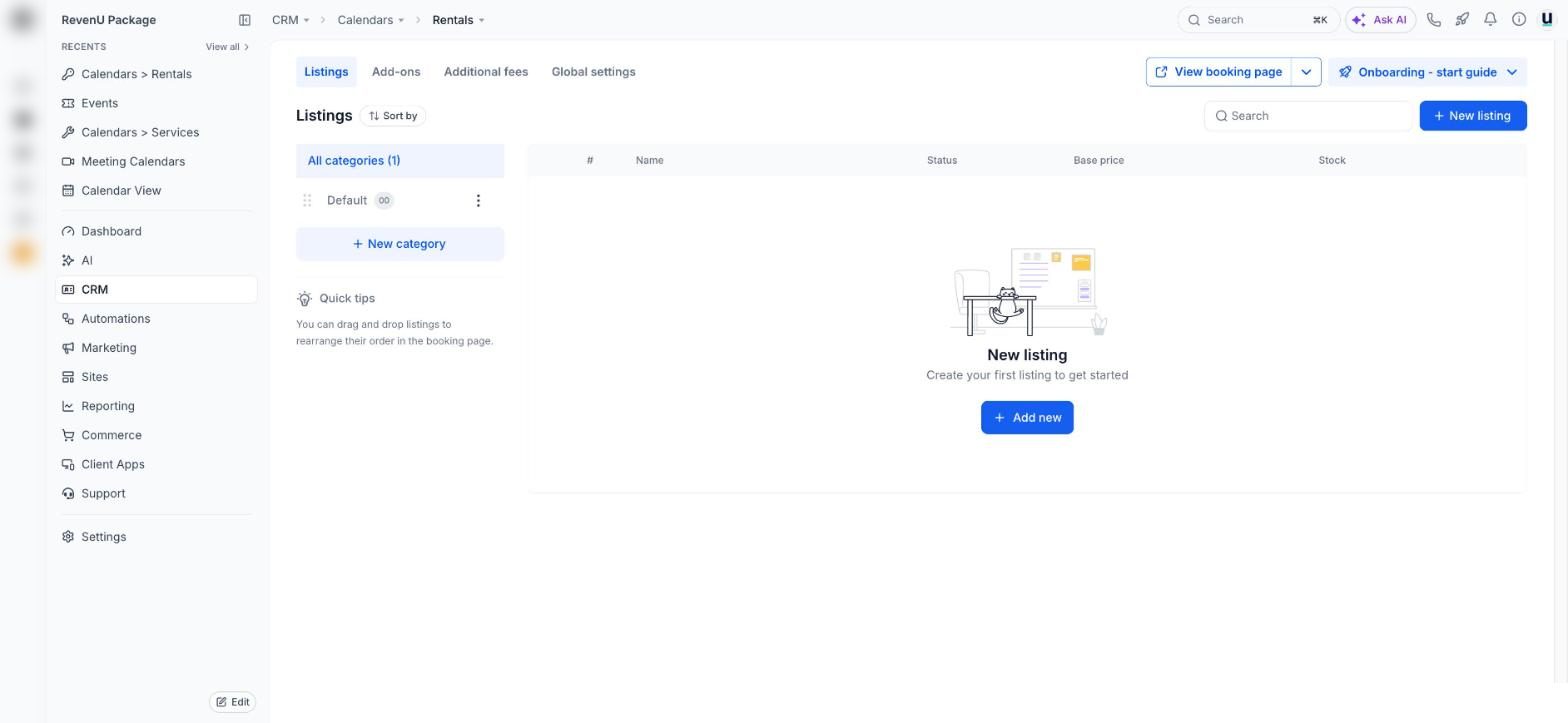 Rentals6 buttons explainedMeeting Calendars11 buttons explained
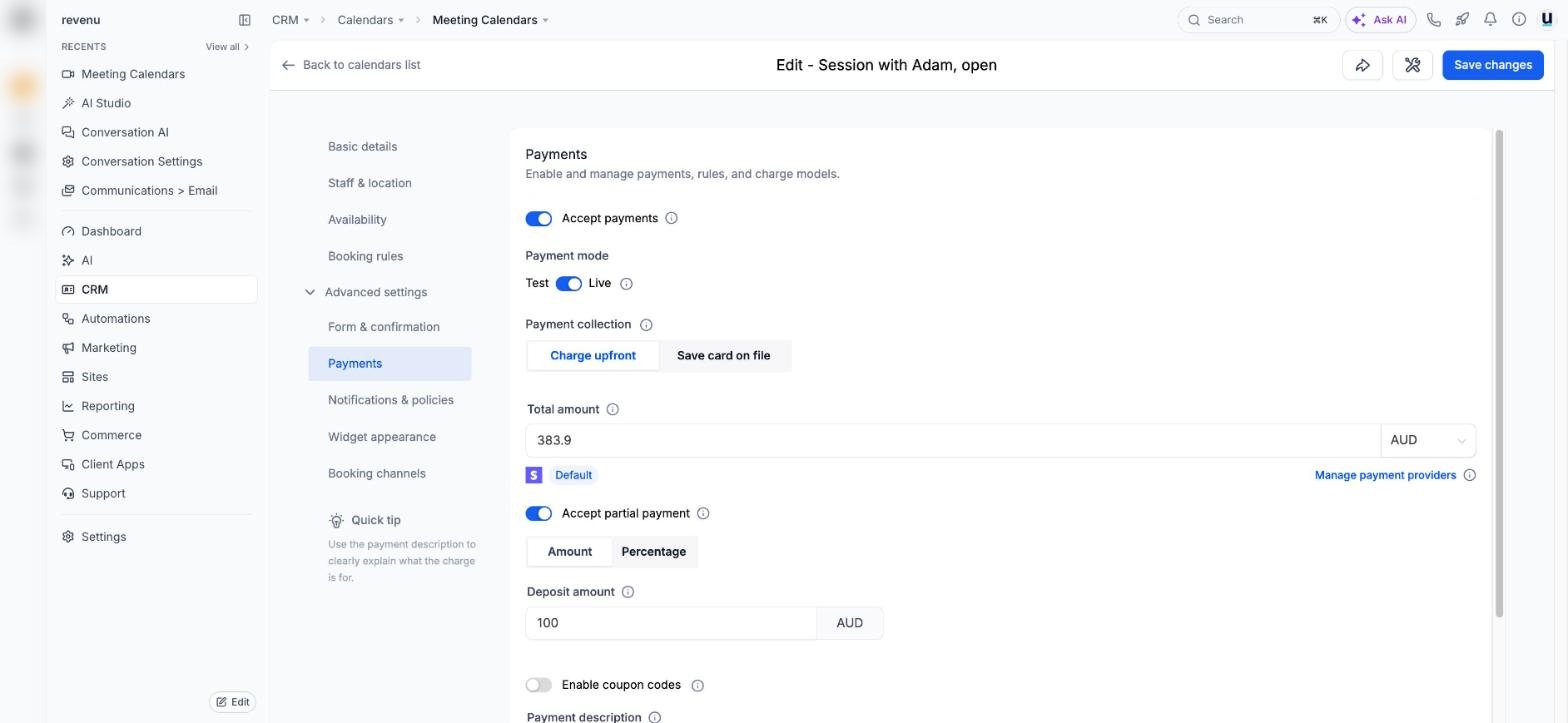 Calendar settings: Payments13 buttons explained
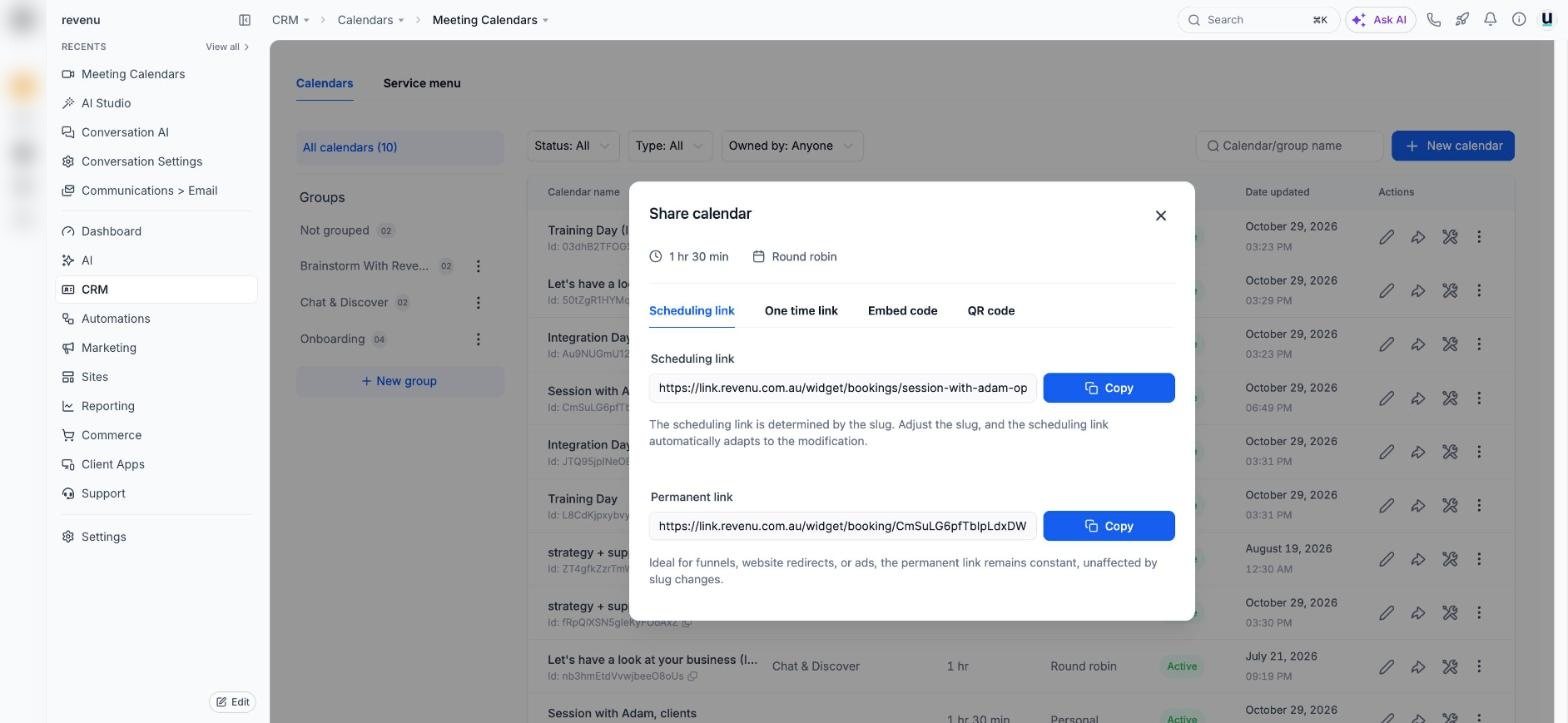 Share calendar8 buttons explained